
Local Printing
Welcome to our guide on Local Printing. 🖨
Local printing allows you to print receipts and order tickets directly from your iOS device by connecting a printer with a USB cable.
In this guide, we’ll walk you through how local printing works, how to set it up on the Dines app, and how to use it once everything is in place.
How Local Printing Works
Unlike Cloud Printing (which you can see setup instructions for here), Local Printing doesn’t rely on a network connection. Instead, the printer is connected straight to the iOS device running Dines. Once the connection is made, the Dines app recognises the printer, and within a few steps, you’ll be using it to print.
What You’ll Need
Before setting anything up on the app, we’ll first need to make sure the physical setup is spot on.
You’ll need a compatible Star Micronics printer, ideally the MCPrint-3 series, along with its power cable. The printer must always be powered independently - the USB connection alone will not be enough.
Speaking of, you’ll also need a USB cable that matches your setup. This will usually be;
- USB-C> USB-C for newer iOS Devices
- USB-A or USB-C > Lightning for older devices
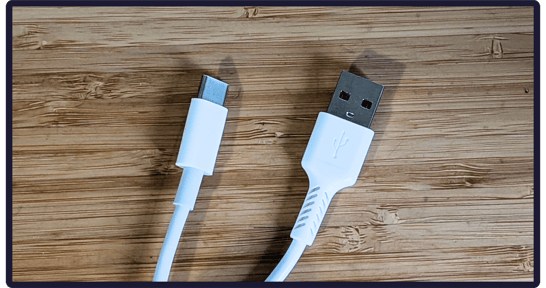
Once the printer is correctly connected, you may notice that your iOS device starts charging. This is normal and often a good sign that the connection is working properly, as the device is drawing power through the printer.
Finally, make sure that your printer has paper loaded before continuing.
Connecting the Printer to your Device
You’ll notice on the back of your printer that there are up to three USB ports, which can be either USB-A or USB-C. The port used to connect your device to Dines is identified by an “iPad” label.
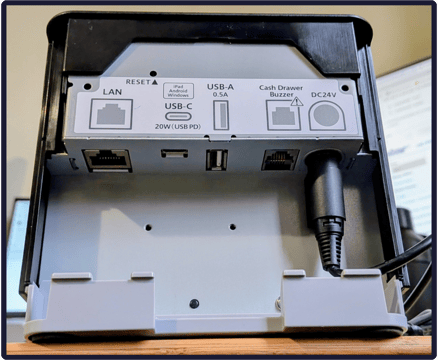
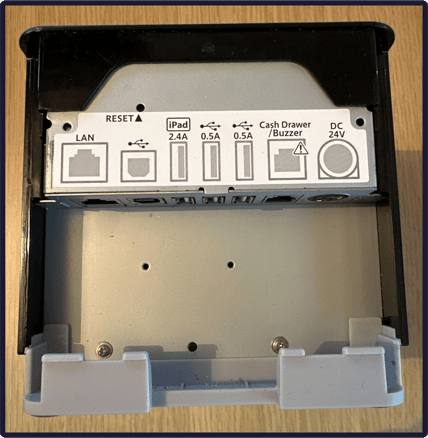
(Don’t let the “iPad” label fool you, though. You can also connect your printer to the Dines app installed on an iPhone.)
To connect, you’ll need the appropriate USB cable that plugs into the “iPad” port. One end of the cable should match the printer’s USB port (USB-A or USB-C), and one should match your iOS device (USB-C or Lightning).
There’s nothing you need to configure in iOS itself. Once the printer is connected, Dines will be able to detect it automatically when you search for local printers. Which leads us nicely onto…
Adding a Local Printer on Dines
Open your Dines app and head to the EPOS tab (where you would normally view your menu). From here, tap Functions (⚙) at the top of the page, and navigate to Printers > Manage Local Printers.
This page will show any Local Printers currently set up on the device. However, if this is your first time setting up a Local Printer, tap “Discover Printers” to begin setup.
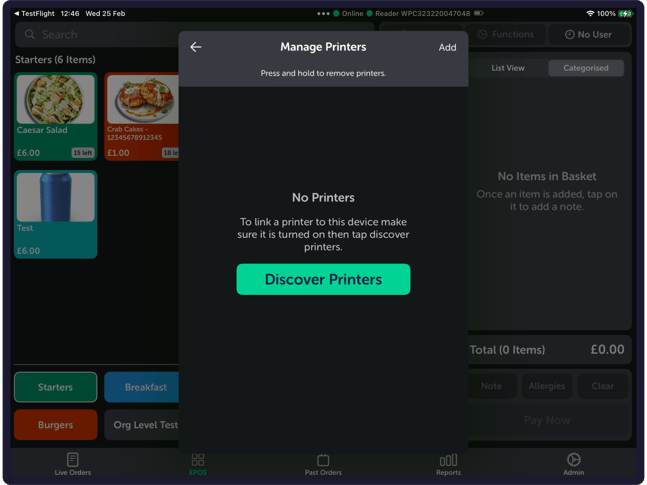
If the printer is connected correctly, it will appear on the list immediately. You should see the printer model along with the serial number. If you ever need to confirm this, the serial number can normally be found on a sticker on the bottom of the printer (providing it hasn’t been removed).
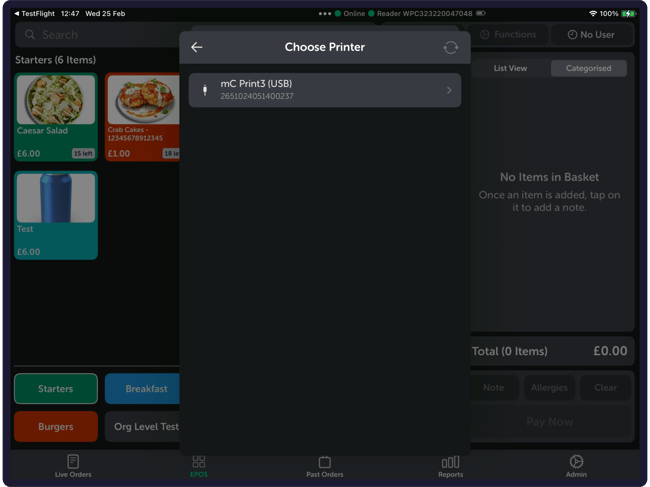
Tap the printer to start configuring it.
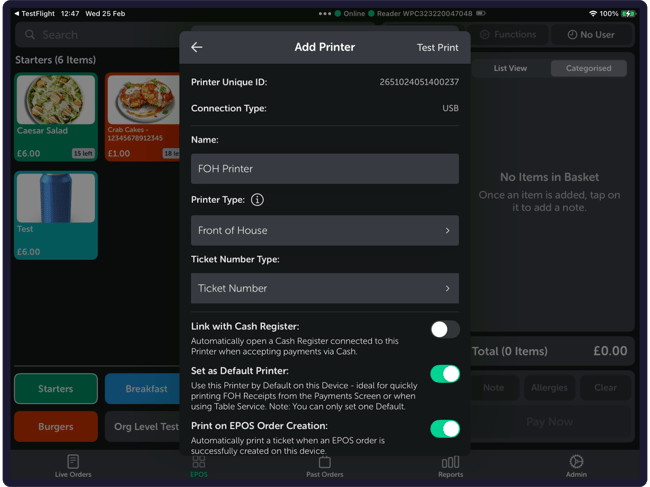
Now, you’ll see a screen that will require you to input a few details, and apply various toggles.
You’ll first be asked to give the printer a name. This can be anything you like, but it’s best to choose something clear and recognisable. For example, “Front of House,” “Bar Printer,” “Kitchen Printer” etc. This is especially important if you plan to have the printer set up more than once on this device, for customer receipts and kitchen tickets (more on that later).
Next, you’ll need to choose a Printer Type. This determines what kind of tickets the printer will receive and how they are formatted. If you’re unsure which option to choose, tap the small “i” icon above the field to see a full description of what each type is for.
Then you’ll see the option to choose between Ticket Number, Order Number or Both. A full guide on this feature is available here, but briefly, here is what these options mean;
- Order Number: A random 4-digit number is given for each order
- Ticket Number: You can assign your own custom, sequential identifier to each order, e.g., “A-01” or “BAR-33.”
- Both: Both!
Below this are several optional settings that allow you to tailor how the printer behaves. These include linking the printer to a cash drawer so that it opens automatically for cash payments, setting the printer as the default option when printing receipts, and enabling automatic printing when an EPOS order is created.
You will also see an option to group items by category on ticket, e.g, “Burgers > Hamburger, Cheeseburger” and “Drinks > Latte, Cola” as opposed to “Hamburger, Cheeseburger, Latte, Cola.” And lastly, you can choose to use internal Item or Modifier names instead of customer-facing ones. These settings are particularly useful in kitchen environments, where kitchen staff don’t need to know the name of an item (e.g., “Mega Margherita Mayhem”), they just need to know what to make (e.g., “Margherita Pizza”).
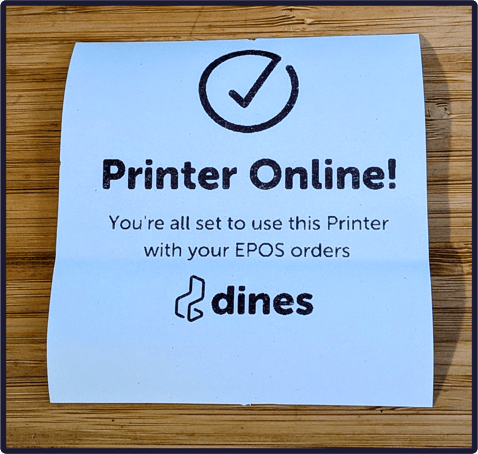
Before you tap “Add Printer,” at the bottom of the page, check the top-right corner, where you can run a quick test print to make sure the connection between printer and iOS device is fine. If all is well, you’ll see something like the below.
Once you’re happy with everything on the screen, tap “Add Printer,” and then your printer will be ready to use.
Setting Multiple Functions for One Printer
It is possible to have your Local Printer act as a receipt printer, and a Kitchen ticket printer at the same time. In fact, you can set one Local Printer to have as many different functionalities as you please. See below:
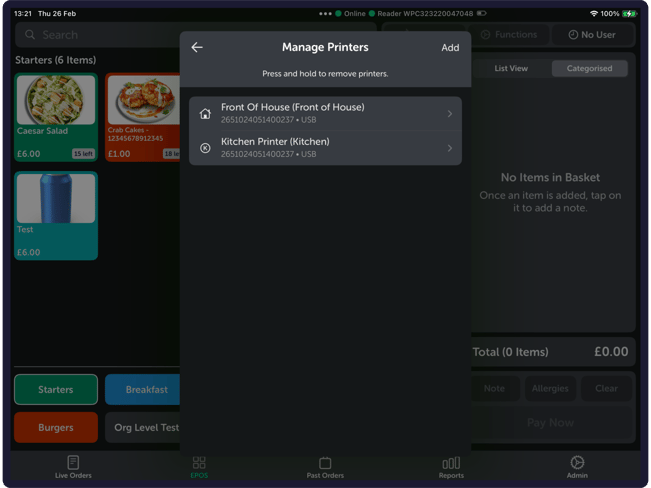
To achieve this, you simply need to follow the “Adding a Local Printer on Dines” steps again. So for example, the first time you could set up the Local Printer as a receipt printer. Then with the additional setups, you could choose Kitchen Printer, Bar Printer, etc…
This is particularly handy for setups where there are several workstations in close vicinity of one another.
Re-Printing Past Orders
If you need to re-print a customer’s receipt, you can do this from the Past Orders tab at the bottom of the Dines app.
Here, you’ll see a list of the orders taken on your account. Simply find the correct order (remembering you can also use the filters at the top to sort by date, time, etc), tap on the order, and head to the “Print/Receipt” tab.
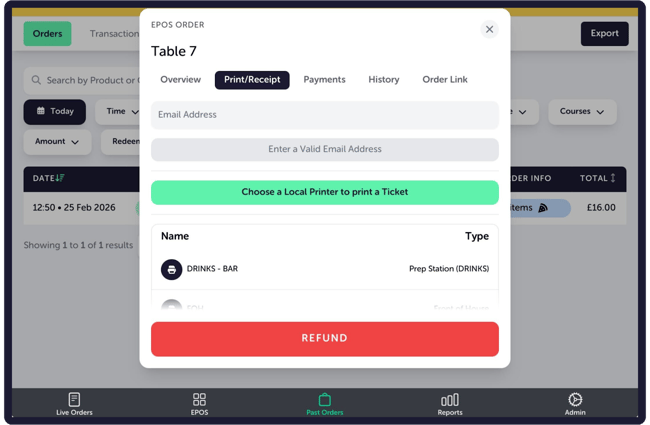
Select “Choose a Local Printer to Print a Ticket,” and you can then choose your printer. The receipt will print within a few seconds.
Troubleshooting Common Issues
Local Printing is usually “plug and play” once everything has been setup, but the most common issue that can occur is a printer not appearing when you tap “Discover Printers.” This is frequently related to the physical connection rather than the app.
The first thing to check is the USB cable. Faulty or incompatible cables are a common cause of issues with Local Printing, so trying a different cable is always a good place to start. If you’re using an adaptor for your cable, it’s also worth testing the cable on a different device without the adaptor attached, if possible.
You should also check that the printer is powered on, has paper loaded correctly, and has a stable power supply.
If the printer is powered on but still not printing, our Printer Tips & Troubleshooting article covers common printer-specific issues, such as paper feed problems and flashing icons.
And that’s everything. Thank you for reading through our guide on Local Printing. If you have any questions or feedback at all, or if there is a particular Knowledge Base article you’d like to see, please get in touch. You can reach us via email at care@dines.co.uk, or use our Live Chat and WhatsApp support services by clicking here.